🔌 Add plugins to Web Viewer
Panoramax Web Viewer relies on Photo Sphere Viewer for display of pictures. This amazing piece of software offers many plugins to customize the user interface. You can take advantage of these in complement of Panoramax' features.
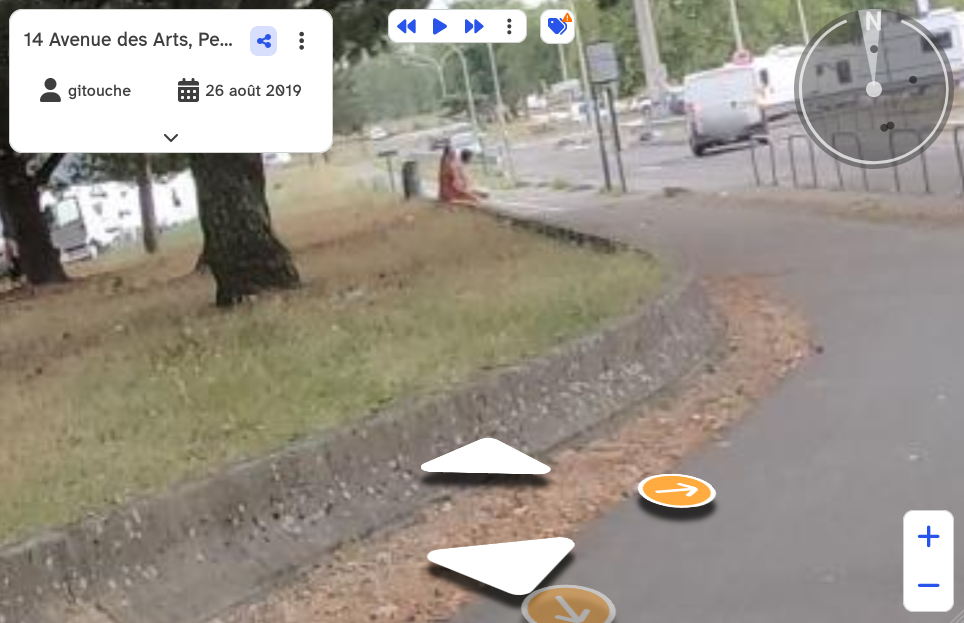
Let's take an example, and add a compass to the PhotoViewer.
Make sure you have the plugin CSS file imported:
<link rel="stylesheet" href="https://cdn.jsdelivr.net/npm/@photo-sphere-viewer/compass-plugin@5/index.css" />
Add the plugin into the Import Map as well:
<script type="importmap">
{
  "imports": {
    ...
    "@photo-sphere-viewer/compass-plugin": "https://cdn.jsdelivr.net/npm/@photo-sphere-viewer/compass-plugin@5.14.1/index.module.js",
    ...
  }
}
</script>
Then, we need to pass the plugin to the Photo Viewer. This can't be done through classic Web Component HTML-like syntax, you have to manually create the component in JS:
<script type="module">
    // Import the plugin
    import { CompassPlugin } from "@photo-sphere-viewer/compass-plugin";

    // Create PhotoViewer element
    const viewer = document.createElement("pnx-photo-viewer");
    viewer.id = "viewer";
    viewer.classList.add("fullpage");
    viewer.setAttribute("picture", "329af5c6-4761-4a6d-9c1e-674fd6daa8b6");

    // Define plugins list in PSV options
    viewer["psv-options"] = { plugins: [
        CompassPlugin.withConfig({ position: "top right"})
    ] };

    // Set Panoramax endpoint last, to avoid premature PSV loading
    viewer.setAttribute("endpoint", "https://explore.panoramax.fr/api");
    document.body.appendChild(viewer);
</script>
And enjoy the magic! 🪄